You’ll need a Linux VPS. A 4 GB plan, CA$12.99/mo in Halifax, runs a server for a group of friends.
See VPS plansBy the end of this guide you’ll have your own Minecraft: Java Edition server running on a Linux VPS. Your friends can join from anywhere, it keeps running after you close your laptop, and it starts itself again if the server ever reboots. No experience needed — you’ll copy and paste every command, and after each one we’ll show you exactly what you should see.
What you’ll need
- A Linux VPS running Ubuntu 24.04. 4 GB of RAM comfortably fits a group of friends; pick 8 GB for lots of mods or a bigger crowd. Don’t have one yet? Grab one above — it’s ready in a couple of minutes.
- Your server’s IP address and root password. Both are in your welcome email and in the Customer Portal.
- A terminal on your own computer — just a window where you type commands:
- Windows: open PowerShell (press Start, type PowerShell, press Enter).
- Mac: open Terminal (press Cmd + Space, type Terminal, press Enter).
- Linux: open your Terminal app.
- Minecraft: Java Edition on your computer, to join and test. (The phone/console “Bedrock” edition uses different server software and won’t connect to this one.)

One rule for the whole guide: wherever you see your_server_ip, type your own IP address instead (it looks like 203.0.113.42).
Step 1: Connect to your server
Open your terminal (PowerShell on Windows, Terminal on Mac/Linux), type the line below with your own IP in place of your_server_ip, and press Enter:
$ ssh root@your_server_ipThe very first time, it asks if you trust this server:
The authenticity of host '203.0.113.42' can't be established.
...
Are you sure you want to continue connecting (yes/no/[fingerprint])?
Type yes and press Enter. Next it asks for your password — type or paste your root password and press Enter.
For security the terminal shows nothing, not even dots. Just type it and press Enter.
You’re in when the start of the line changes to something like this — it means you’re now typing commands on your server:
root@your-server:~#Step 2: Update the server and install Java
Minecraft: Java Edition runs on Java. First, bring the server up to date. Copy this, press Enter, and give it a minute:
$ apt update && apt upgrade -yMinecraft needs a matching version of Java. The download in the next step gives you the latest Minecraft (26.x right now), which needs Java 25 — so most people pick the first option below. Only choose the older one if you specifically want a 1.20.5–1.21.x server (for example, for mods or plugins that haven’t updated yet).
$ apt install -y openjdk-25-jre-headless$ apt install -y openjdk-21-jre-headlessCheck it installed:
$ java -versionopenjdk version "25.0.3" 2026-10-21
OpenJDK Runtime Environment (build 25.0.3+9-Ubuntu)
OpenJDK 64-Bit Server VM (build 25.0.3+9-Ubuntu, mixed mode)As long as you see openjdk version and the number you installed, you’re good.
Step 3: Open the Minecraft port
A firewall decides what’s allowed to reach your server. We’ll switch it on and allow two things: SSH (so you can still log in) and port 25565 (the door Minecraft uses). Run these:
$ apt install -y ufw
$ ufw allow OpenSSH
$ ufw allow 25565/tcp
$ ufw enable
When it warns that this may disrupt existing connections, type y and press Enter.
If you turn the firewall on without allowing SSH, you’ll lock yourself out of your own server.
Check what’s now allowed:
$ ufw statusStatus: active
To Action From
-- ------ ----
OpenSSH ALLOW Anywhere
25565/tcp ALLOW AnywhereStep 4: Create a Minecraft user and download the server
For safety we won’t run the game as the all-powerful root user. We’ll make a separate minecraft user with its own folder, then switch to it:
$ useradd -m -d /opt/minecraft -s /bin/bash minecraft
$ su - minecraft
Your prompt changes to minecraft@your-server:~$ — you’re now acting as the minecraft user. Next, grab the official server download link:
- On your own computer, open minecraft.net/download/server.
- Right-click the
minecraft_server.….jarlink and choose Copy link (or “Copy link address”).

minecraft_server link and choose “Copy link”.Back in the terminal, type wget -O server.jar then a space, then paste your link (right-click to paste, or Ctrl + V), and press Enter:
$ wget -O server.jar PASTE_YOUR_LINK'server.jar' saved [58720256/58720256]Step 5: Accept the Minecraft rules (EULA)
Start the server once so it creates its files. It stops right away and asks you to accept Mojang’s End User License Agreement:
$ java -Xms1G -Xmx3G -jar server.jar nogui[ServerMain/WARN]: Failed to load eula.txt
[ServerMain/INFO]: You need to agree to the EULA in order to run the
server. Go to eula.txt for more info.That’s normal. Accept it with this one command:
$ sed -i 's/eula=false/eula=true/' eula.txt-Xmx3G?
It’s the most memory Minecraft may use. Leave about 1 GB for the system: use -Xmx1G on a 2 GB VPS, -Xmx3G on 4 GB, and -Xmx6G on 8 GB.
Step 6: Start it, join, and make yourself admin
Start the server again:
$ java -Xms1G -Xmx3G -jar server.jar noguiThe first start takes a minute while it builds the world. It’s ready when you see a line like this:
[Server thread/INFO]: Done (41.238s)! For help, type "help"Now open Minecraft on your computer and join:
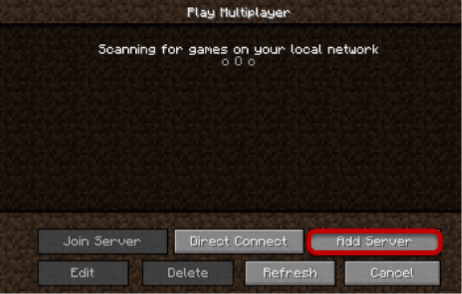
- Click Multiplayer, then Add Server.
- In Server Address, enter your server’s IP address (
your_server_ip). - Click Done, then double-click your server to join. 🎉
While you’re connected, make yourself an admin (“operator”) so you can run commands. Type this in the terminal window where the server is running, using your exact Minecraft username:
op YourMinecraftName[Server thread/INFO]: Made YourMinecraftName a server operatorNow stop the server cleanly and return to the root user:
stop
$ exitStep 7: Keep it running 24/7
Right now the server stops the moment you close the terminal. Let’s turn it into a service so it runs in the background and restarts itself after a reboot. Open a new, empty file:
$ nano /etc/systemd/system/minecraft.servicenano is a simple text editor right in the terminal. Paste the block below into it (right-click, or Ctrl + V). Only change -Xmx3G if you chose a different memory size earlier:
[Unit]
Description=Minecraft Server
After=network-online.target
Wants=network-online.target

[Service]
User=minecraft
WorkingDirectory=/opt/minecraft
ExecStart=/usr/bin/java -Xms1G -Xmx3G -jar server.jar nogui
Restart=on-failure
RestartSec=10

[Install]
WantedBy=multi-user.target
Save and close nano: press Ctrl + O then Enter to save, then Ctrl + X to exit. Now switch the service on and set it to start at boot:
$ systemctl daemon-reload
$ systemctl enable --now minecraft
$ systemctl status minecraft● minecraft.service - Minecraft Server
Loaded: loaded (/etc/systemd/system/minecraft.service; enabled)
Active: active (running) since ...Seeing active (running) (usually in green) means it’s live. Press Q to leave that screen. You can close your terminal now — the server keeps running.
Step 8: Change settings and manage your server
Settings like the name shown in the server list (motd), max-players, difficulty and gamemode live in server.properties. Edit it, then restart to apply:
$ nano /opt/minecraft/server.properties
$ systemctl restart minecraft
Handy commands to keep somewhere:
systemctl stop minecraft— stop the server (it saves the world first).systemctl start minecraft— start it again.systemctl restart minecraft— restart after changing settings.journalctl -u minecraft -f— watch the live server log. Press Ctrl + C to stop watching.
Run systemctl stop minecraft, start the server by hand as in Step 6, type op TheirName, then stop and systemctl start minecraft.
One bad mod or a griefer shouldn’t cost you your world. Turn on daily automatic backups for your VPS in the Customer Portal — they’re 20% of your plan, from CA$1.40/mo.
That’s it — your Minecraft server is live, locked down, and running around the clock. Have fun, and if you get stuck on any step, our team in Nova Scotia is on the help desk and Discord.
Ready to build your world?
Canadian VPS in Halifax and Montreal, set up in minutes. Prefer no setup at all? Our Minecraft servers are one click.